Print profiles
An entity that holds the print information. The print contains metadata information, enrollment segments and footprints, and the print template (binary buffer) generated in the train process. Currently the following types of prints are supported: voiceprints and convoprints.
Manage prints
To manage prints, open the person profile as follows:
- Select the Person icon on the navigation toolbar.
- Type the person name or ID in the search text-box.
- Click Search.
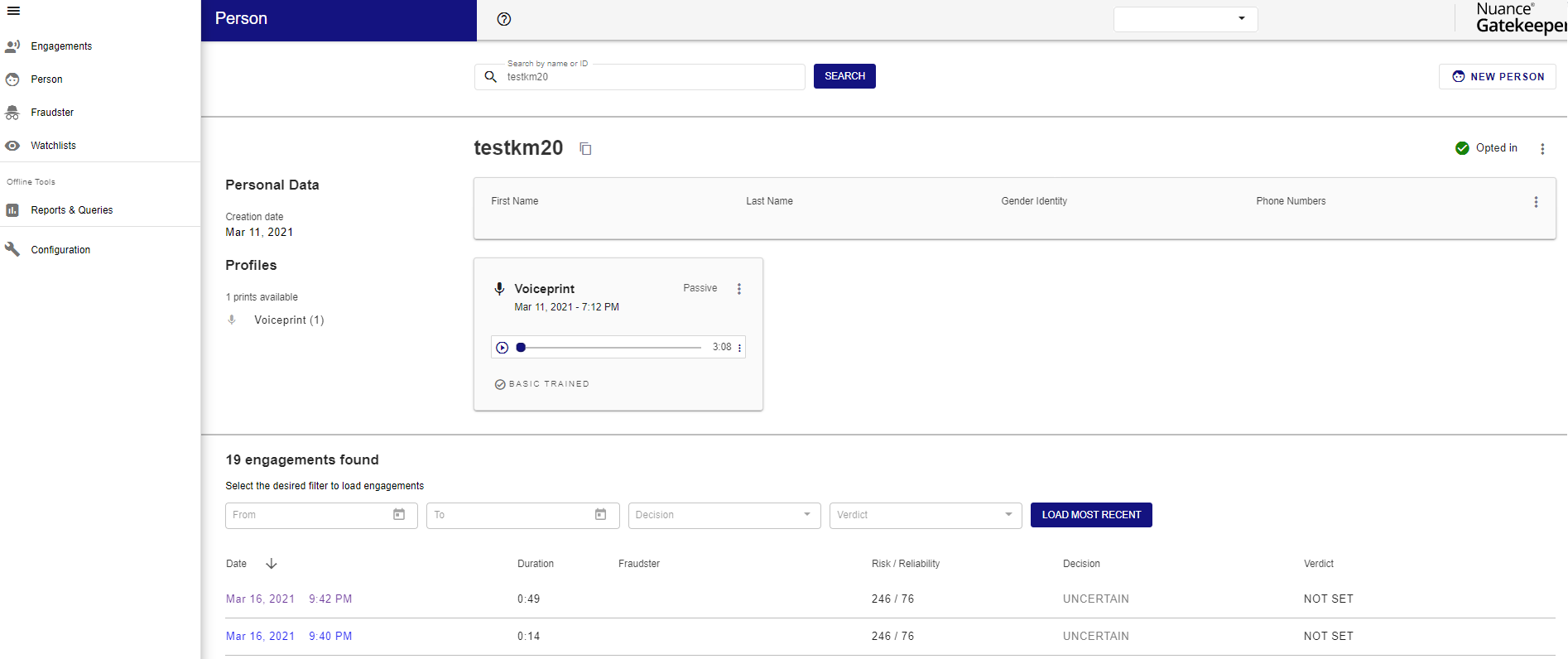
Create a print
To create a print:
- Select Create new Voiceprint from the menu on the upper-right side of the page.
- Use the default voiceprint profile or modify it.
- Select a configset.
- Select the audio format.
- Upload audio for enrollment and click Ok. If the person is not opted in you need to give consent.
You can also perform the following actions on existing print profiles:
- Add audio to an existing print profile:
- Click the menu on the top right of the print panel and select Upload audio.
- Select a configset.
- Specify the audio format.
- Upload audio for enrollment and click Ok.
- Train: Click the menu at the top right of the print profile and select Train.
- Add audio that belongs to a certain print profile, to another print:
- Select Add to Print from the menu on the right side of the biometric sample. If the person is not opted in you need to give consent.
- Enter person type, name, and print tag.
- Select a configset and click Ok. If the print does not exist Gatekeeper creates it.
- Remove a biometric sample from a print profile: Select Remove from Print on the right side of the biometric sample.
- Lock or Unlock a print: Click the menu on the top right of the Print panel and select Lock or Unlock. When locking enter a reason.
- Delete: Click the menu at the top right of the print profile and select Delete.
- Manage app data: See editing app data.
- Verify: See running a biometric verification.