Log in
You must log in to use the Gatekeeper web application. Recommended browsers:
- Firefox
- Chrome
- Edge
To start a session, use a browser to navigate to one of the following URLs:
- Australia: https://portal.gatekeeper.nuance.net.au
- Canada: https://portal.gatekeeper.nuance.ca
- Europe: https://portal.gatekeeper.nuance.eu
- Japan: https://portal.gatekeeper.apac.nuance.com
- United Kingdom: https://portal.gatekeeper.nuance.co.uk
- United States: https://portal.gatekeeper.nuance.com
Note:
URLs mentioned in this topic may be different in your environment, depending on the geographic region of the deployment you are using.You can log in to the Gatekeeper web application with either of the following ways:
-
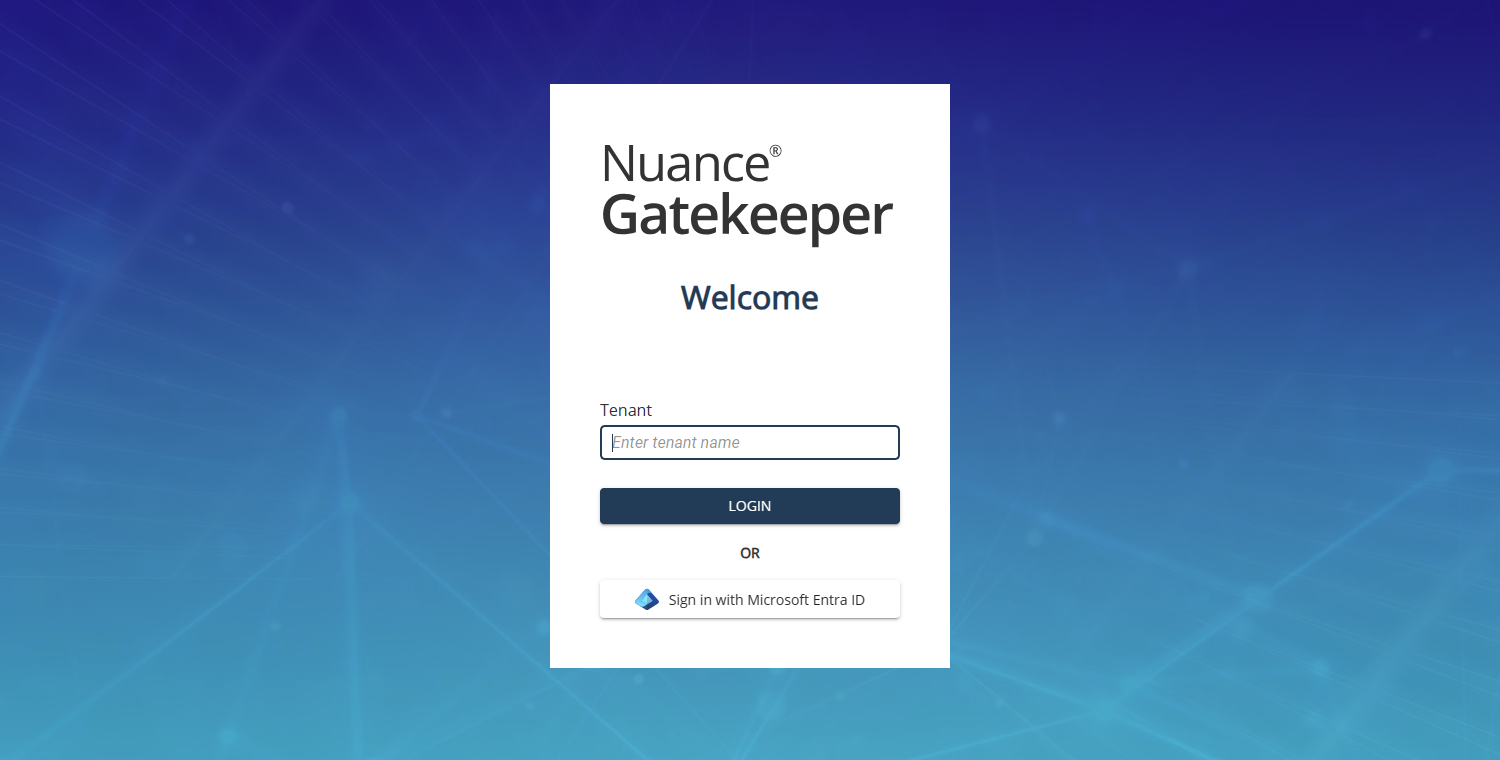
Log in with your tenant information and credentials
- Enter your tenant name.
- Select LOGIN.
- Enter your email address, password, and any additional information required by your identity provider. You are logged in to the Gatekeeper web application.
-
Log in with Microsoft Entra ID
- Click Sign in with Microsoft Entra ID.
- Enter your email address, password, and any additional information (if required). You are logged in to the Gatekeeper web application.
Switch scopes
The web application displays data for one scope at a time. To switch to a different scope, select the preferred scope from the Scope dropdown menu.
Navigation
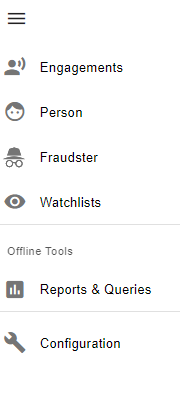
Navigate to different pages of the web portal by selecting icons on the Welcome page. You can also select page names or their corresponding icons on the left-side navigation panel to navigate to the engagements, person, fraudster, watchlist, report, and configuration pages.
View product documentation
Click the  (question mark) icon on the upper-left side of the screen to view product documentation.
To improve customer experience, Gatekeeper refreshes the access token silently. When reading the documentation, keep the web application open in another tab to avoid having to log in when the token expires.
If you cannot access the web application, ensure that the logged in user has the required security permissions. Admins can set the web application permissions to read-only for certain users in order to protect deployment data. For further guidance, contact Nuance support.
Set your timezone
When you log in to the Gatekeeper web application, the top menu bar displays your timezone. The timezone may not get displayed if you use a low-resolution screen.
To set or update your timezone:
- Select the timezone displayed on the upper-right side of the screen. The User Preferences dialog opens. The timezone is automatically selected depending on what is displayed in the Computer timezone field of the dialog.
- To apply the computer’s default timezone, click Apply next to the Computer timezone field.
- To update the automatically filled timezone:
- Remove the timezone from the Timezone dropdown list. A list of timezones opens.
- Select the preferred timezone in the Timezone dropdown list.
- Select SAVE AND RELOAD. Your timezone preference is saved and is reflected on all pages of the web portal.
Sign in with a different account
If you have multiple Azure Active Directory (AD) accounts in the same tenant, you can sign in to the Gatekeeper web application using different AD accounts. The Sign in with a different account option allows you to switch between multiple Azure AD accounts.
To sign in with a different account:
- Select your profile icon or email address on the top menu bar. A menu opens.
- Select Sign in with a different account.
- Enter your other AD account credentials to sign in.